Business cards and contacts · 2:56
Make a digital business card with a QR code
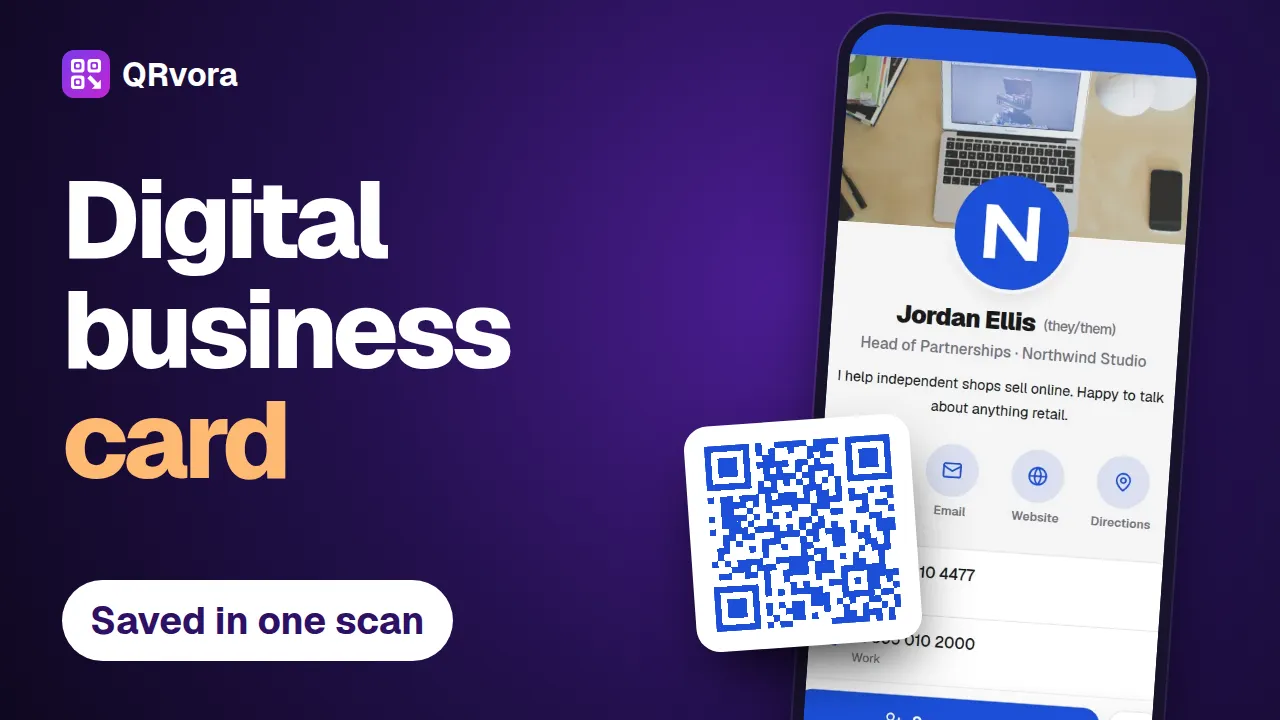
Build a digital business card in seven steps, put the QR code on your printed card, and let people save your details to their phone with one scan.
What you'll learn
- Why vCard Plus beats a plain vCard code for print
- How to add your photo, numbers, email and social profiles
- How big to print the code on a business card
- What changes after you edit, and what doesn't
Transcript
This is a digital business card. One scan, and your name, number and email are ready to save to a phone.
In this video, we'll build one from nothing, in seven steps, and put the code on a printed card. Have your details and a photo or logo ready.
Step one. Create your code.
In your dashboard, choose Create QR, then vCard Plus. Plain vCard can't be changed after printing, but vCard Plus can.
Give it a name that only you will see, then press next.
Step two. Add who you are.
Upload your photo or your company logo, then a banner for the top of the card.
Type your name, job title and company. The phone on the right shows what people will see, and it updates as you type.
Then add a line or two about what you do.
Step three. Add your contact details.
Add your phone number with its country code, because it gets saved into other people's phones. You can add up to four numbers.
Then your email, website and address. Anything you leave empty stays off the page.
Add your social profiles too, like LinkedIn and Instagram.
Step four. Choose a look and save.
Pick a light or dark background, then your brand color.
Press save, and your card is live.
Step five. Design your QR code.
Press next. Choose a dark color that suits your brand, on a light background, so it scans easily.
Then add a frame. Save contact tells people exactly what the scan does.
Now download it. SVG stays sharp at any size, so send that one to your print shop.
Step six. Put it on your card.
The back of the card works well. Make the code at least one inch wide, about two and a half centimeters, on a plain, light area with a clear margin around it.
Keep your name and number printed on the front. The code adds to your card. It doesn't replace it.
Step seven. Test it, and keep it up to date.
Print one copy and scan it. People can call, email or get directions with one tap, and save contact puts your details in their phone.
New job title? Edit your card and press save. The same printed card shows it on the next scan.
One thing to know. A contact that's already saved on someone's phone won't change by itself. They'd need to scan and save it again.
That's your digital business card, done. Next, a wedding invitation your guests can reply to, just by scanning it.
More tutorials
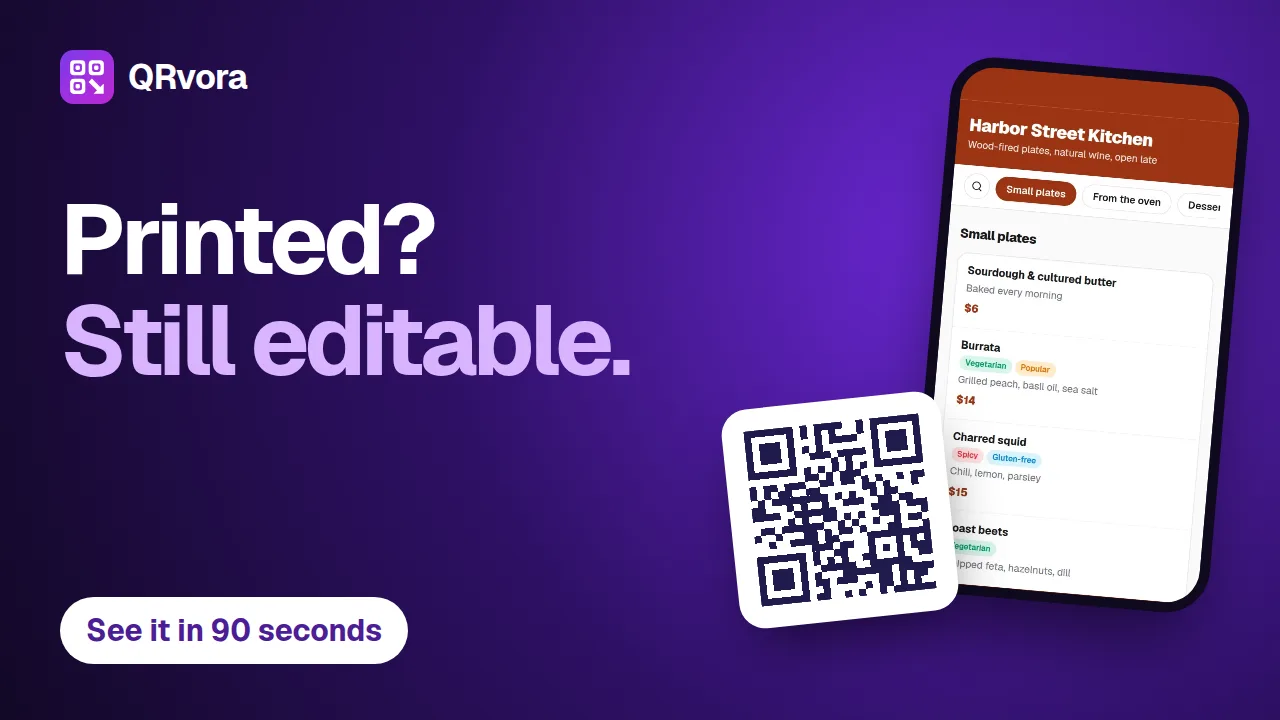 1:26Getting startedQR codes you can change after printingA tour of QRvora in 86 seconds: the 15 dynamic types, the page builder, design and print files, changing a link after printing, smart rules, analytics and automation.
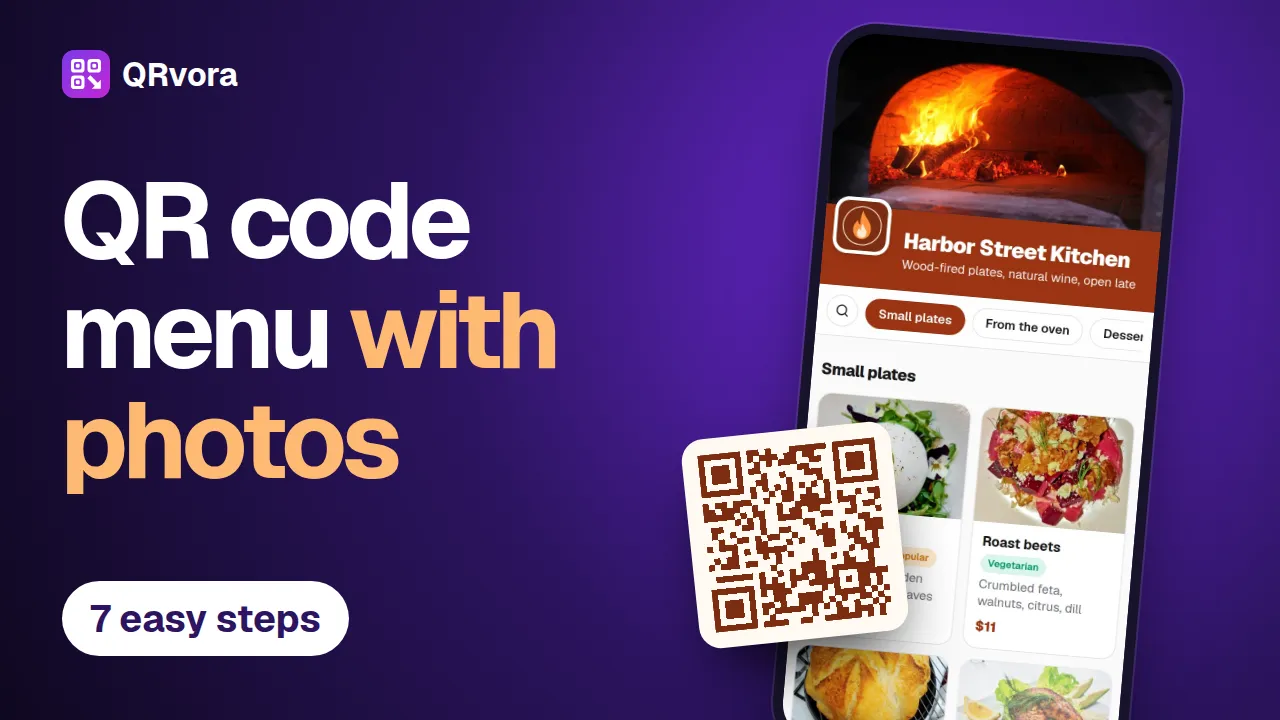 3:13Menus and restaurantsMake a QR code menu with photosBuild a restaurant menu in seven steps, from an empty account to a printed table card: dishes, photos, prices, tags, your branding and a QR code that's ready to print.
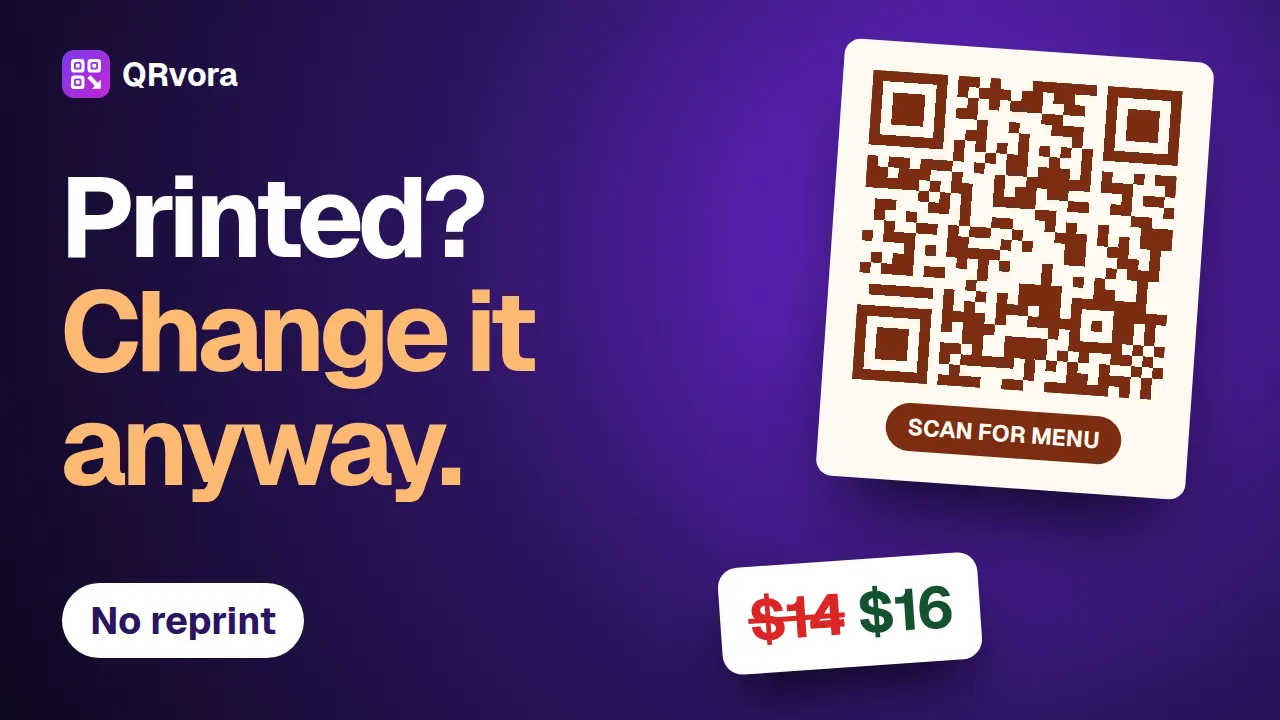 2:34Editing and printingChange a QR code after printingChange a price, a dish or a website link behind a printed QR code, and keep the code you printed. Six steps, and the mistakes that cost a reprint.
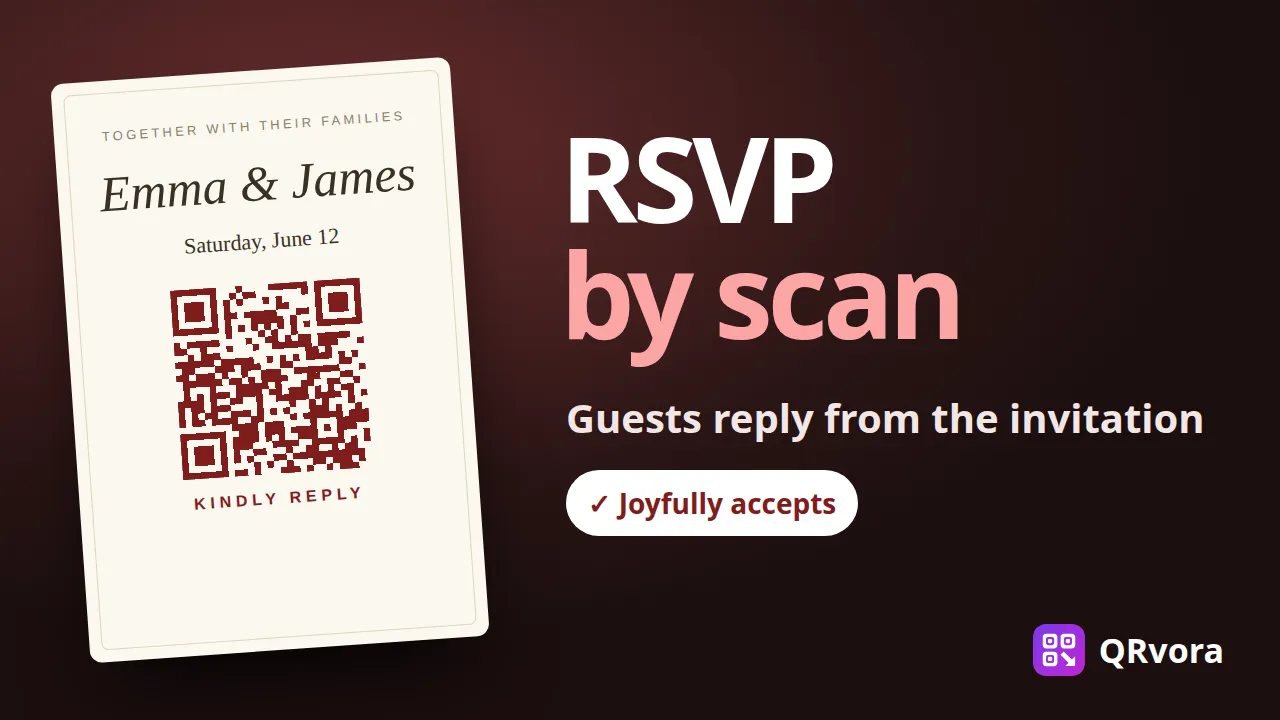 2:30Weddings and eventsMake a wedding RSVP QR codePut a QR code on your wedding invitations. Guests scan it, see your invitation and reply in a few taps, and every answer lands in one list you can download for your venue.
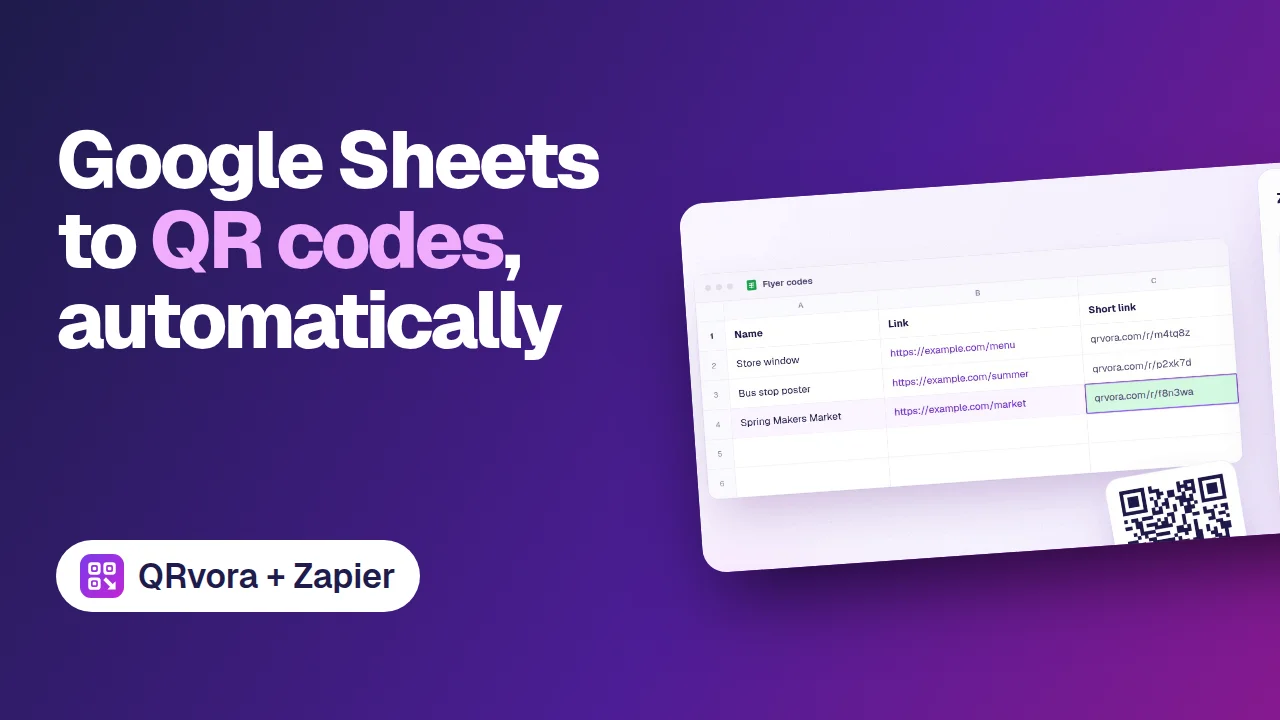 0:40AutomationGoogle Sheets to QR codes, automaticallyAdd a row to a Google Sheet, and Zapier creates a dynamic QR code for it in QRvora, then writes the short link back into the row.