QRvora Team·
How to Put a QR Code in a Business Card: Steps and Cost
Add a QR code in business card designs: pick static or dynamic, size it 1 inch or wider, and test a proof. Printing runs about $0.20–$0.46 per card.

Jordan Hale
Hale Studio
To add a QR code in a business card, pick the one page you want people to reach, generate a code for it, and place it at least 1 inch wide on a plain, high-contrast part of the card. Test-scan a printed proof, then order. The code itself costs nothing. Printing runs roughly $0.20 to $0.50 per card at online printers. Use a static code if the link will never change and a dynamic code if it might.
Most business card QR codes fail for dull reasons. The code is too small, sits on a glossy photo, or points at a homepage that has nothing to do with the conversation you just had. Or it encodes a phone number that changed after 500 cards were printed. A code that does not scan looks careless in the one place you want to look sharp.
This guide covers the whole job in order. You will decide whether a QR code belongs on your card, choose what it opens, generate and style it, and place it correctly. Then you will test it and print it with a real budget in mind. At QRvora we build codes that people print on cards, menus and signs, so the advice here is about what survives ink and paper.
Why a QR code on your card is worth the space
A QR code earns its place when it does one job that printed text cannot, such as saving your contact details or opening your booking page. It does not earn its place as decoration. A business card with a QR code works best as a bridge from a short conversation to a longer one.
When a QR code earns its place
The strongest uses are the ones where typing is a pain. Nobody at a trade show will type a 90-character portfolio address, but almost everyone will point a phone camera at a code. Good jobs for the code include:
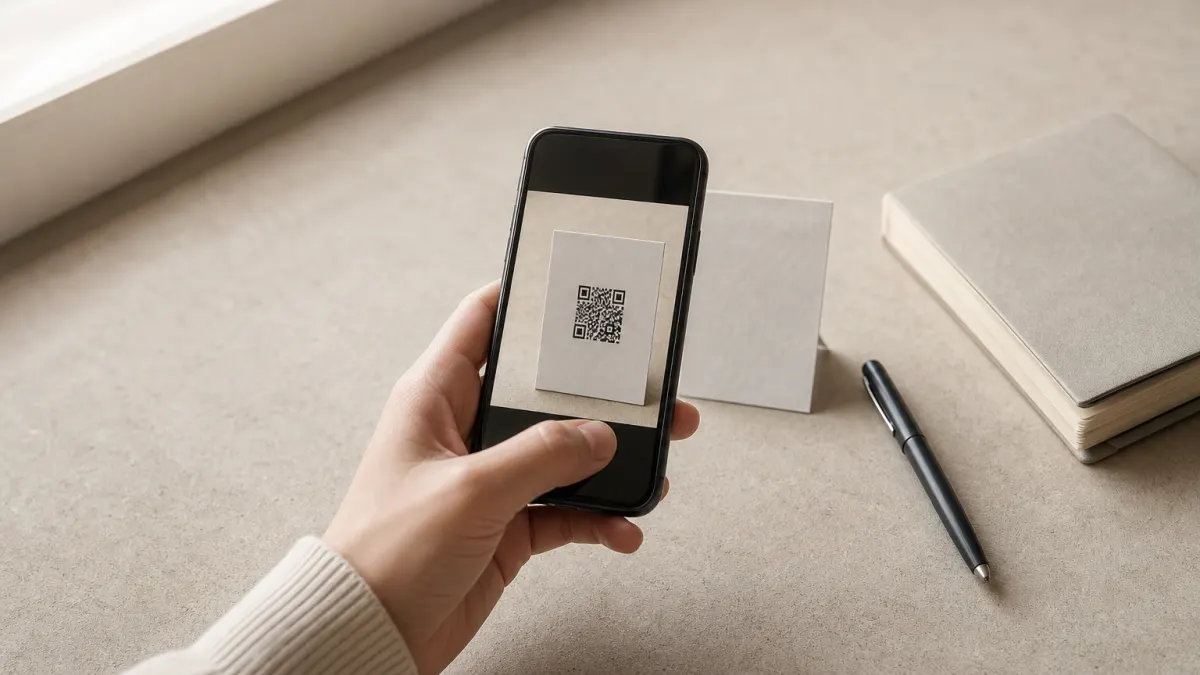
- Save your contact. A vCard code adds your name, number and email to the phone in two taps.
- Book a call. Link straight to your scheduling page.
- Show your work. Link to a portfolio, property listing, menu or product catalog.
- Ask for a review. Link to your Google review page right after a job.
When it hurts your card
Some designers argue that a QR code signals you are collecting names instead of building a connection. The objection is fair when the code replaces your printed details. It does not hold when your name, title, phone or email, and website are still readable in plain text. Some people will not scan, and some will scan in bad light.
A generic code to your homepage is the other common mistake. It asks the visitor to hunt for the reason you gave them the card.
A QR code should add to your printed details, never replace them.
What the code itself costs
Static QR codes on QRvora are free, unlimited, need no account and never expire, because the content is encoded directly in the pattern. Dynamic codes route scans through an editable link. The free plan includes 1 dynamic code that redirects for 12 months from creation, with analytics paused past 1,000 scans per month. Paid plans start at $9 per month. Printing costs come later, in Step 4.
Step 1. Decide what the code opens
Choose one destination, then choose static or dynamic based on how likely that destination is to change. Every later decision follows from those two choices.
Pick one destination
Send people somewhere that continues the conversation. A photographer links to a portfolio, a consultant to a booking page, a contractor to a mobile page with a call button and reviews. If you need several links, use a hosted list of links or a business page instead of cramming them into the card.
Whatever you choose, open it on your phone over cellular data first. A page that takes eight seconds to load loses the scan you worked to earn.
Static or dynamic
A static code holds the destination inside the pattern. A dynamic code holds a short redirect link that you can edit later. Here is how they compare for a business card:
| Static | Dynamic | |
|---|---|---|
| Change destination after printing | No, you reprint | Yes, edit any time |
| Scan tracking | No | Yes, by day, city and device |
| Cost on QRvora | Free, no account | 1 free code for 12 months, paid plans from $9/month |
| Expiry | Never | Redirects per plan terms |
| Pattern density | Denser with long content | Simpler, short link |
Use static for a permanent address you own, like yourname.com/contact. Use dynamic when you print in bulk, when your links may change, or when you want to know whether anyone scans. One caveat: on paid plans a dynamic code keeps redirecting while you subscribe plus 30 days after you cancel. If you will hand out the same cards for years, a static code on a domain you control is the safer choice.
Print a static code for links you will never change, and a dynamic code for everything else.
Encoding the whole card as a vCard
A vCard code stores your name, phone, email and company directly, so a scan offers "Add contact". This is the closest you get to a business card in QR code form, and it works offline. Because every field makes the pattern denser, keep it to name, mobile, email and website. A denser code needs more printed size to scan reliably. Remember that a changed phone number means a reprint.
Step 2. Generate and style the code
Open the QR code generator, choose a content type, enter your data, style the code and download a print file. Free static codes take a minute and need no account.
Create the code
Here is the path in QRvora:
- Open the generator and pick a content type: Website URL, vCard, Business page or List of links.
- Paste the full address, including https://. A shortened or partial link can fail on some phones.
- Choose static or dynamic, based on Step 1.
- Style the code using the rules below.
- Download it as SVG or PDF for print.
Many printers also generate a code for you at checkout. That is convenient, but you may not be able to edit it or see scans. Uploading your own gives you control over the link and the design.
Style it without breaking it
Branding is welcome, but every change takes contrast or clean edges away from the scanner. Follow these rules:
- Use a dark code on a light background. Black or a deep brand color is safest.
- Keep any logo small and in the center, then test the result.
- Choose rounded dots or corner styles freely, but avoid gradients that fade toward the background color.
- Add a frame with a call to action such as "Scan to save my contact". It tells people what happens when they scan.
Pick the right file
| Format | Best use |
|---|---|
| SVG | Print. Scales without blur, ideal to send to a printer |
| Print-ready upload to online printers | |
| PNG | Canva, Word or Google Slides. Export it large |
| JPG | Last resort, since compression can soften edges |
Step 3. Place it on the card
Put the code at least 1 inch wide, on a plain light area, with clear space around it and nothing printed over it. A standard U.S. card measures 3.5 by 2 inches, so there is room for a code and your details.
Size and clear space
A QR code can technically scan at about 0.8 inch (2 cm), but phone cameras vary. Treat 1 inch as the minimum and 1.1 to 1.25 inches as comfortable on a card's back side. A longer encoded link or a full vCard needs more size, not less.
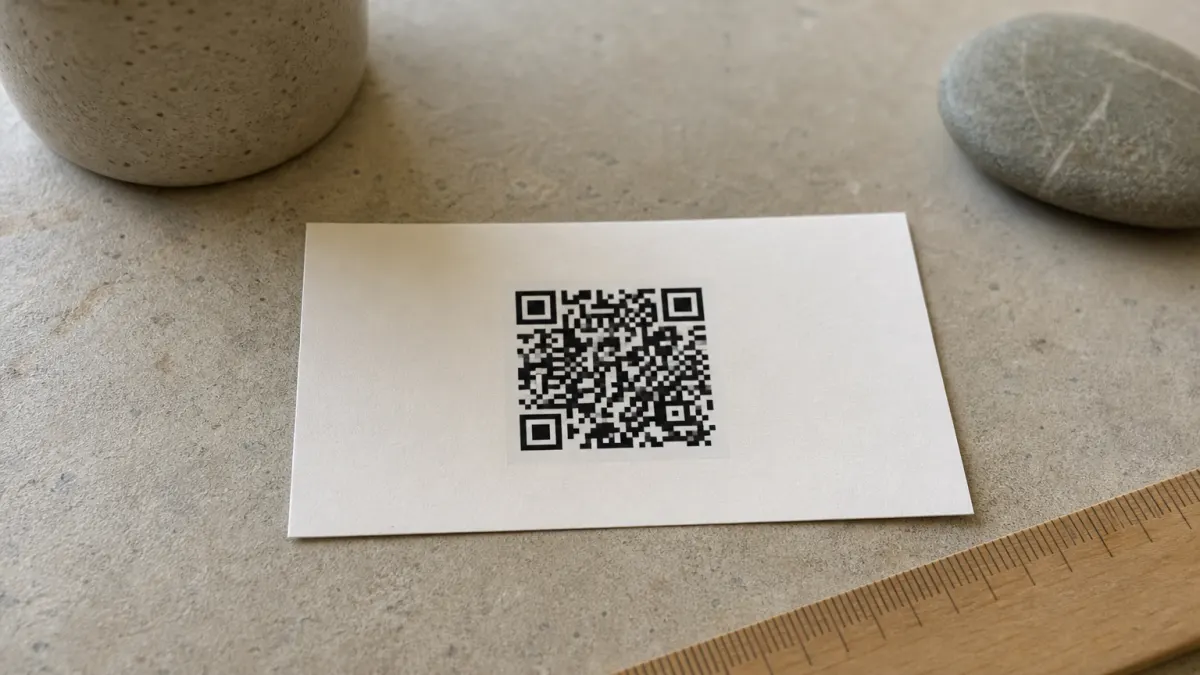
Leave a blank border around the code, called the quiet zone. Roughly one-eighth of an inch on a 1 inch code is a good floor. Also keep the whole code inside your printer's safe area, about a tenth of an inch from the trim edge, so a slightly off cut does not clip it.
Front or back
Most cards put the code on the back. The front keeps your name, logo and contact details uncluttered, and the back gives the code room plus a short prompt. Put the code on the front only when it is the main event, as with a card that is mostly a code for saving your contact. Check whether your printer charges extra for printing the back.
Contrast, finish and print effects
Glossy coatings throw glare at the wrong angle, so matte or uncoated stock scans most reliably. Keep foil, embossing, spot gloss and heavy texture away from the code, and never place it across a fold or a rounded corner. On dark card stock, put the code on a solid white panel instead of inverting the colors, because not every scanner reads light-on-dark codes.
If a finish changes how light bounces off the code, it belongs somewhere else on the card.
Step 4. Test, print and budget
Print one proof, scan it on several phones, fix what fails, then order the full run. Prices depend more on quantity and paper than on the QR code.
Test before you order
Print a single proof at 100% scale, with no "fit to page" scaling, and check it:
- Scan with an iPhone camera and an Android camera.
- Scan at arm's length, at about 8 inches, and in dim light.
- Confirm the destination opens quickly and looks right on a phone.
- Check the printed edges for blur or clipped corners.
Fix anything that fails before you pay for 500 cards.
What printing costs
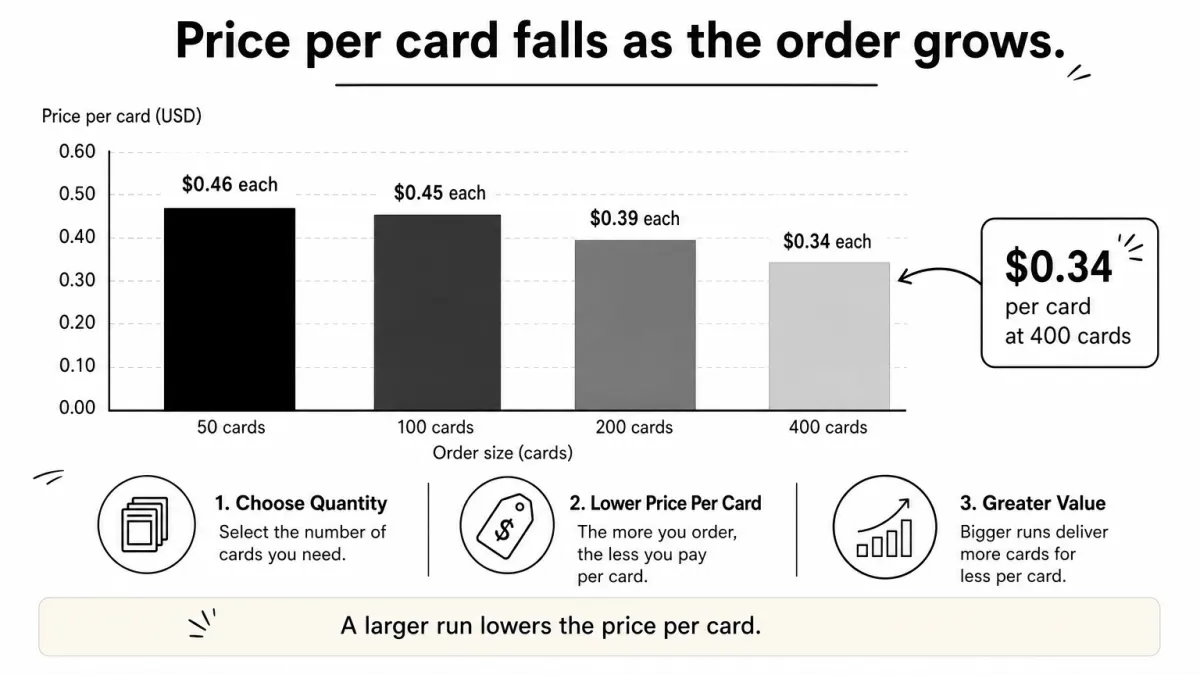
Published rates for QR business cards vary by paper, finish and shipping. A large budget printer lists 50 cards for about $10, or $0.20 each, and charges from $29 for a design service. A premium printer's published pack prices look like this:
| Quantity | Price per card | Pack price |
|---|---|---|
| 50 | $0.46 | $23 |
| 100 | $0.45 | $45 |
| 200 | $0.39 | $78 |
| 400 | $0.34 | $135 |
Upgraded paper and back-side printing can add fees at checkout, so read the final total before you pay. Printing at home on card stock costs only paper and ink, which suits proofs and small batches. Your QR code adds nothing to these prices when you use a free static code.
Track scans after you hand them out
With a dynamic code, you can track scans by day, city, device and operating system. After a conference, you will know whether the card produced anything. If scans are zero, change the destination or the call to action without reprinting. Scan data is how you judge whether the code was worth the space.
Print one, scan it, then order the rest
Putting a QR code in a business card comes down to a few choices done carefully. Send people to one useful page, keep your printed details, and use static or dynamic to match how often the link may change. Make the code at least 1 inch wide on a quiet, light area, and prove it on paper before you print a full run.
Ready to make yours? Create your business card QR code with QRvora, download it as SVG or PDF, and send it to your printer.
Print a code you can still edit next year
1 dynamic QR code free, with scan analytics. Active for 12 months on the free plan, and editable the whole time. No card needed.
Create a free QR code