QRvora Team·
How to Share WiFi Password on iPhone, Android, or Laptop
Learn how to share wifi password access from iPhone, Android, laptops, and TVs using built-in prompts, QR codes, and a safer guest network.

Guest Wi-Fi
Scan to connect
Here is how to share wifi password access in under a minute. On an iPhone, have your guest tap your network name in their Wi-Fi settings, then tap Share Password on your unlocked phone. On Android, open your network's settings, tap Share, and let the guest scan the QR code. For an iPhone-to-Android pair or any other mixed setup, a Wi-Fi QR code works with every modern camera.
You already know the problem. Your password is 16 random characters, and nobody wants to read it aloud while a guest squints at "l" versus "I" and "0" versus "O". One typo and the connection fails. Built-in sharing exists, but it fails silently when one small setting is off, and most guides never say which one.
This guide walks you through each method in order: checking what you need, sharing from iPhone, sharing from Android, crossing between platforms, and printing a permanent code. At QRvora we build QR codes for a living, and a Wi-Fi code is the one almost everybody needs at home or at a front desk, so the last step covers it in detail.
Before you start: pick the right sharing method
The right method depends on your guest's device, not yours. Apple devices share with each other in two taps, while everything else needs a QR code or a typed password. Knowing how to share a Wi-Fi password starts with choosing from this list.
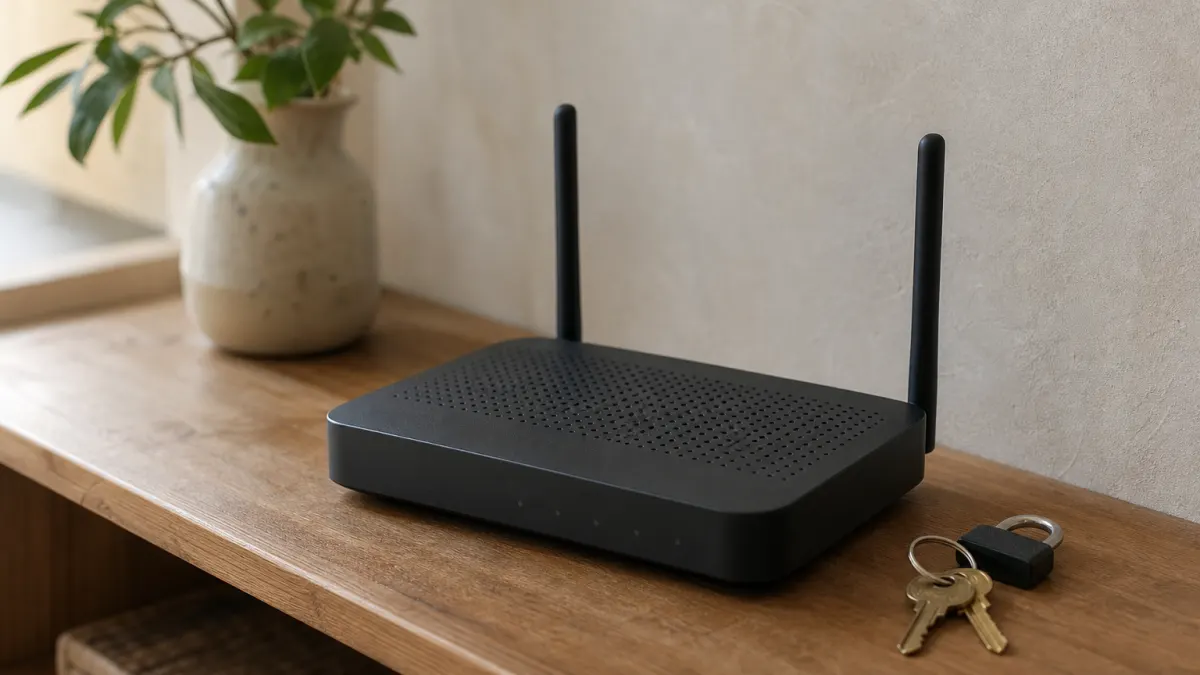
Match the method to the devices
Start with the first row that fits both devices. The built-in prompt is fastest but only works Apple to Apple. QR codes are the universal fallback, and typing is the last resort for anything without a camera.
| Method | Works between | Best for |
|---|---|---|
| iPhone Share Password prompt | iPhone, iPad, Mac | One-off Apple guests |
| Android QR code | Android to any phone | Android hosts |
| iPhone QR code (iOS 18 or later) | iPhone to any phone | Mixed iPhone and Android |
| Printed QR code | Any camera phone | Repeat guests, rentals, offices |
| Typing it in | Any device | TVs, consoles, laptops |
A QR code is the only method that works on every phone, and typing is the only one that works on every device.
Share safely with a guest network
Giving out your main password gives out access to your whole home network. Most routers let you turn on a guest network with its own name and password. Guests get internet, while your computers, printers, and cameras stay out of reach. Set it up in your router's app or admin page.
Whichever network you share, use a WPA2 or WPA3 password of 12 or more characters. Change it if it ends up somewhere it shouldn't. Hand it over in person or through an end-to-end encrypted messaging app, not a big group chat.
Step 1. Share from one iPhone to another
Meet the Apple requirements first, then share from the iPhone that is already connected. The prompt appears on your phone only when everything lines up.
Check the requirements
Apple's sharing prompt depends on five conditions, and missing any one of them means nothing appears. Run through this list before you try again:
- Both devices run the latest iOS, iPadOS, or macOS.
- Wi-Fi and Bluetooth are on, and Personal Hotspot is off.
- Each person is signed in with an Apple Account.
- Each person has the other's Apple Account email or phone number saved in Contacts.
- The devices sit close together, and yours is unlocked and connected to the network.
Send the password
Once the list checks out, the sharing itself takes three steps:
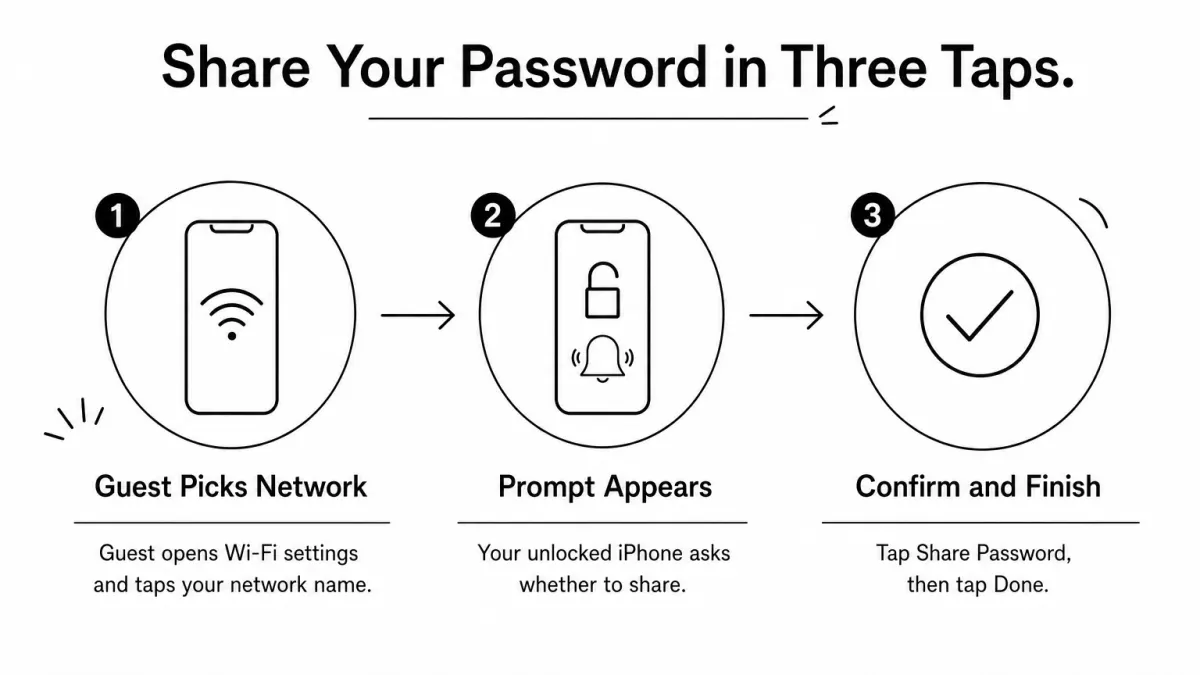
- Ask your guest to open Settings > Wi-Fi and tap your network name.
- Look at your own iPhone. A prompt asks whether to share the password.
- Tap Share Password, then tap Done.
Their device joins automatically. If the prompt never shows up, restart both devices and try again. If it still fails, have your guest type the password manually or use the QR method in Step 3.
If the prompt never appears, check Contacts first, because a missing email or phone number is the easiest thing to overlook.
Step 2. Share from an Android phone
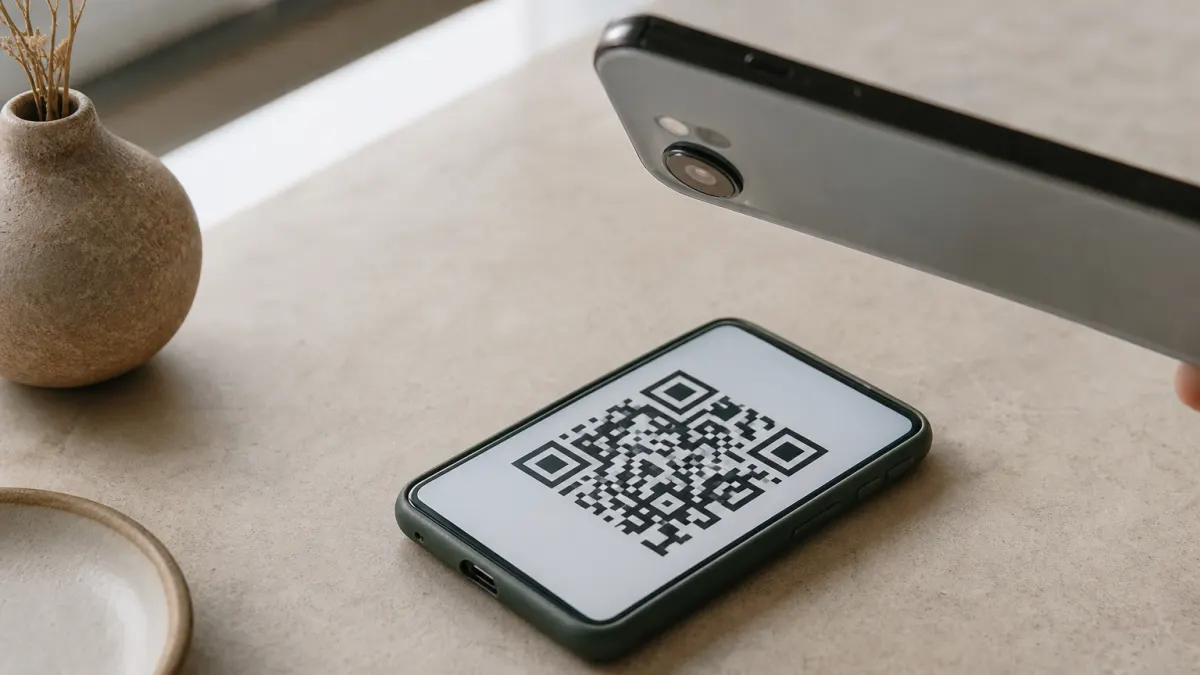
On Android, you share a Wi-Fi password by showing a QR code from your network settings, which the guest scans with a camera. It works for any guest, iPhone users included.
Open the share screen
On a stock Android phone such as a Pixel, the path looks like this:
- Open Settings > Network & internet > Internet.
- Tap the gear icon next to your connected network.
- Tap Share.
- Confirm with your fingerprint, face, or PIN.
- The QR code appears, with the password written underneath.
Menu names vary by brand. On Samsung phones, go to Settings > Connections > Wi-Fi, tap the gear next to your network, then tap QR code. On older Android versions the path starts at Settings > Network & internet > Wi-Fi.
Let the guest scan it
Your guest opens the camera app, points it at your screen, and taps the Join prompt that appears. iPhones and most Android phones read Wi-Fi codes without any extra app. If the camera ignores the code, the password printed below it gives you a typed backup.
The password printed under an Android QR code is your backup when a camera refuses to scan.
Step 3. Share across platforms, laptops, and TVs
To cross between iPhone and Android, show a QR code from the phone that holds the password. Laptops and TVs usually need the password typed, so find it first.
From iPhone to Android and back
Apple's Share Password prompt does not work with Android. Instead, share wifi password iphone to android with a QR code. On iOS 18 or later:
- Open the Passwords app and tap Wi-Fi.
- Tap your network.
- Tap Show Network QR Code.
- Have the Android user scan it with their camera and tap Join.
Going the other way, show the Android QR code from Step 2 and let the iPhone camera scan it. On iOS 17 or earlier, there is no QR option, so copy the password and send it instead.
Find the password for laptops and TVs
Most laptops and TVs cannot scan a Wi-Fi code, so you type the password in. Here is where to find it on each device:
| Device | Where to look |
|---|---|
| iPhone | Passwords app > Wi-Fi > your network > Password field, then Copy Password |
| Android | Settings > Network & internet > Internet > gear icon > Share |
| Windows | Command Prompt, using the command below |
| Mac | Keychain Access, search the network name, double-click it, check Show password |
On Windows, open Command Prompt and run this, replacing the network name. The password appears next to Key Content.
`` netsh wlan show profile name="YourNetworkName" key=clear ``
TVs and consoles need the password typed with the remote. Wi-Fi passwords are case-sensitive, so copy capitals exactly. A TV is also the best argument for a guest network with a shorter, still strong password.
Laptops and TVs rarely scan, so locate the password before the guest arrives and keep it ready.
Step 4. Print a Wi-Fi QR code for repeat guests
A printed Wi-Fi QR code lets every guest join without asking you. You can make a free one at QRvora in about a minute, with no account needed.
Create the code
Follow these steps to make a code that any phone camera can read:
- Open QRvora and choose the Wi-Fi content type.
- Enter the network name exactly as it appears, then the password.
- Set the security type to match your router. Most home networks use WPA or WPA2.
- Pick colors or add a logo, but keep dark code on a light background.
- Download it as SVG or PDF for sharp printing, or PNG for screens.
- Scan the finished code with a phone before you print it.
Know the limits of a static code
A static Wi-Fi code stores the network details inside the pattern itself. It is free, never expires, and keeps working as long as your password stays the same. The text it encodes looks like this:
`` WIFI:T:WPA;S:HomeNetwork;P:your-password;; ``
Static codes cannot be edited, so if you change the password, generate a new code and reprint. Anyone who sees the code can join, so place it where guests will see it and strangers will not. Pointing it at your guest network keeps the risk low.
A printed Wi-Fi code carries the password in plain sight, so point it at a guest network.
Get your guests online without the typing
Sharing a Wi-Fi password comes down to matching the method to the devices. Use the Share Password prompt for Apple to Apple, an Android or iOS 18 QR code for mixed pairs, and typing for TVs and laptops. Put guests on a separate network whenever you can.
If people ask for your password every week, stop answering and print the answer. Use QRvora's Wi-Fi QR code generator to create a free code, download it, and stick it on the fridge or the front desk.
Print a code you can still edit next year
1 dynamic QR code free, with scan analytics. Active for 12 months on the free plan, and editable the whole time. No card needed.
Create a free QR code